
In this guide
What you will complete
You will authorize Rankboard with Google OAuth, select the verified website property, and confirm the first performance sync.
- 1Confirm the website exists in Search Console
- 2Start the connection from Rankboard
- 3Approve Google access
- 4Choose the matching property
- 5Sync and review telemetry
What you need
Collect these details before you start the connection.
- Google account
- An account with access to the target Search Console property
- Property
- A verified Domain or URL-prefix property
- Authorization
- Google OAuth 2.0 approval
Connect Google Search Console
Complete each step in order. Provider screenshots link to their original documentation.
- 1
Confirm the website exists in Search Console
Open Google Search Console with the Google account you plan to connect. Use the property selector → Add property if the website is missing. Verify the property or ask a verified owner to grant your account access.
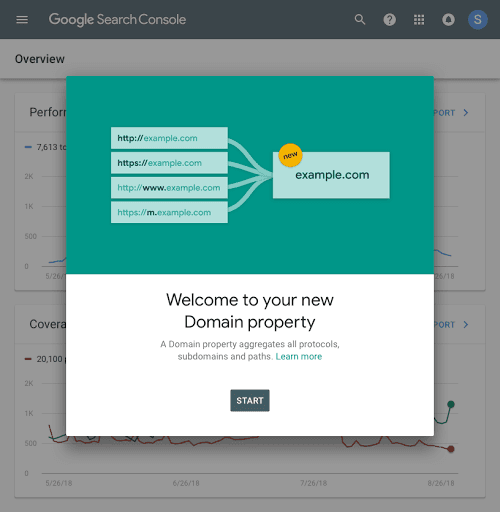
A Domain property combines protocols and subdomains under one verified Search Console property. Source: Google Search Central ↗ - 2
Start the connection from Rankboard
Open the Rankboard project for that website. Select Settings → Integrations → Google Search Console, then select Connect Search Console.
- 3
Approve Google access
Choose the Google account that can access the property and approve the requested Search Console permission. Google handles this OAuth 2.0 step. Do not enter a Google password in Rankboard.
- 4
Choose the matching property
After Google redirects back, choose the Domain or URL-prefix property that represents the Rankboard project. If no properties appear, the selected Google account does not currently have access to one.
- 5
Sync and review telemetry
Rankboard stores the selected property and syncs search-performance data for the project. Use the connection card to resync or disconnect when needed.
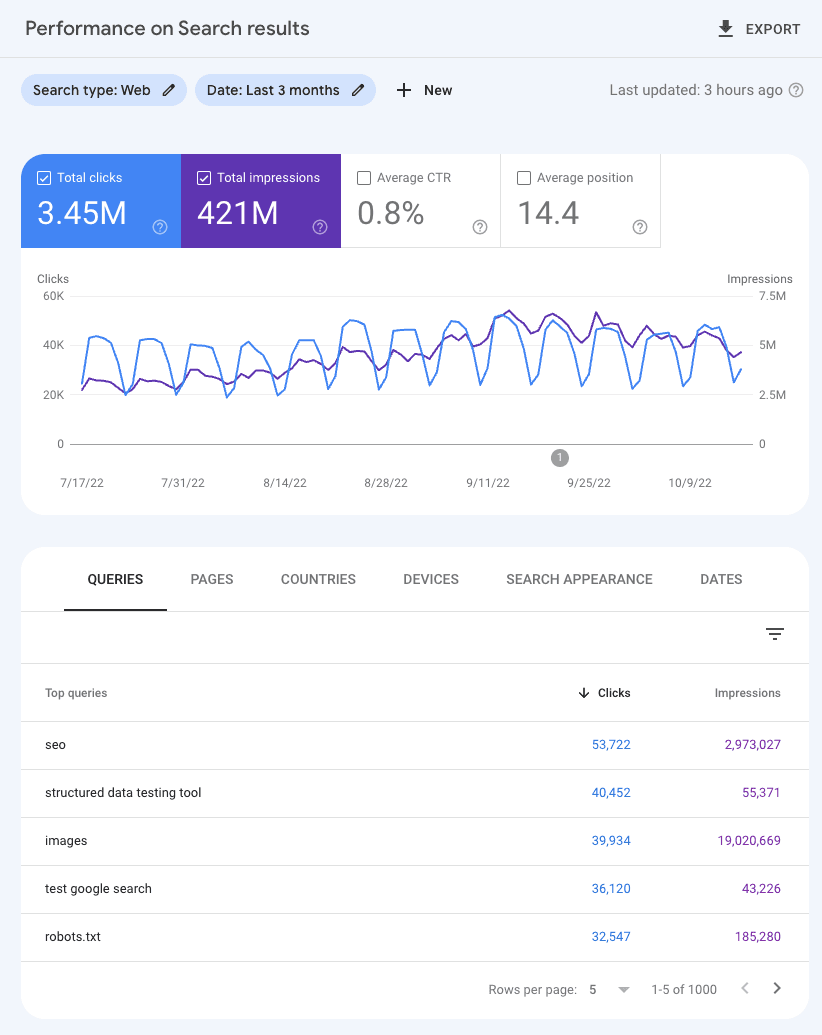
Rankboard syncs the same core metrics shown in Search Console's Performance report. Source: Google Search Central ↗
Data Rankboard sends
Review the data this integration reads or writes before you connect it.
- OAuth authorization and the selected Search Console property identifier
- Search clicks, impressions, click-through rate, and average position
- Query-level and page-level performance rows used by the project workspace
- No CMS publishing credentials and no permission to publish site content
Confirm the connection works
Run one draft test and verify the result before you enable direct publishing.
- The connection card shows Connected and names the selected property.
- A successful sync records the latest sync time and makes search telemetry available to the project.
- Confirm the property matches the exact website scope you intend to analyze, especially when both Domain and URL-prefix properties exist.
Fix common connection errors
Match the error to the issue below, then retry the connection.
No Search Console properties are returned.
Sign in with a Google account that is an owner or user of the property. Add and verify the property in Search Console first, or have an owner grant access.
Google redirects back with a connection error.
Retry the connection and approve the requested access. If the feature is marked unconfigured, the Rankboard deployment owner must configure its Google OAuth client and exact callback URL.
The property is connected but has little or no data.
Confirm you selected the correct property and date coverage. New or recently verified sites may not yet have enough Google Search activity to report.
Protect your credentials
Limit access, keep secrets private, and revoke credentials when the connection is no longer needed.
- Google authorization happens through OAuth 2.0; Rankboard never asks for your Google password.
- Grant access with a Google account appropriate for the project and review connected-app access in your Google account.
- Disconnecting removes the workspace's Search Console token; you can also revoke the app from Google account security settings.
Read the Privacy Policy and Terms & Conditions for service-wide data terms.
Configure a self-hosted workspace
This section is for the person who operates your Rankboard deployment. End users do not need these credentials.
GOOGLE_SEARCH_CONSOLE_CLIENT_ID and GOOGLE_SEARCH_CONSOLE_CLIENT_SECRET on the server. Never send these values to end users.Check the official documentation
Use these provider resources when an interface or policy changes after this guide is reviewed.